


Building reports in the QoE statistics section
QoE Review on Rutube:
This scenario describes how to generate reports for a short period.
If you need to build a report for several days or longer, it is recommended to use the "My reports" section of the operator GUI. Instruction.
If you need to build a report for several days or longer, it is recommended to use the "My reports" section of the operator GUI. Instruction.
Statistics from the DPI are accumulated in the QoE cluster. To build a report, go to the QoE Analytics section of the operator interface — it provides access to QoE.
The following sections are available:
- NetFlow
- Raw full NetFlow
- ClickStream
- Raw ClickStream
- DNS flow
- Raw DNS flow
GTP flow reports are intended for mobile operators, and NAT flow reports are for NAT translations on DPI.
GTP flow and NAT flow reports are not used.
GTP flow and NAT flow reports are not used.
Building a report
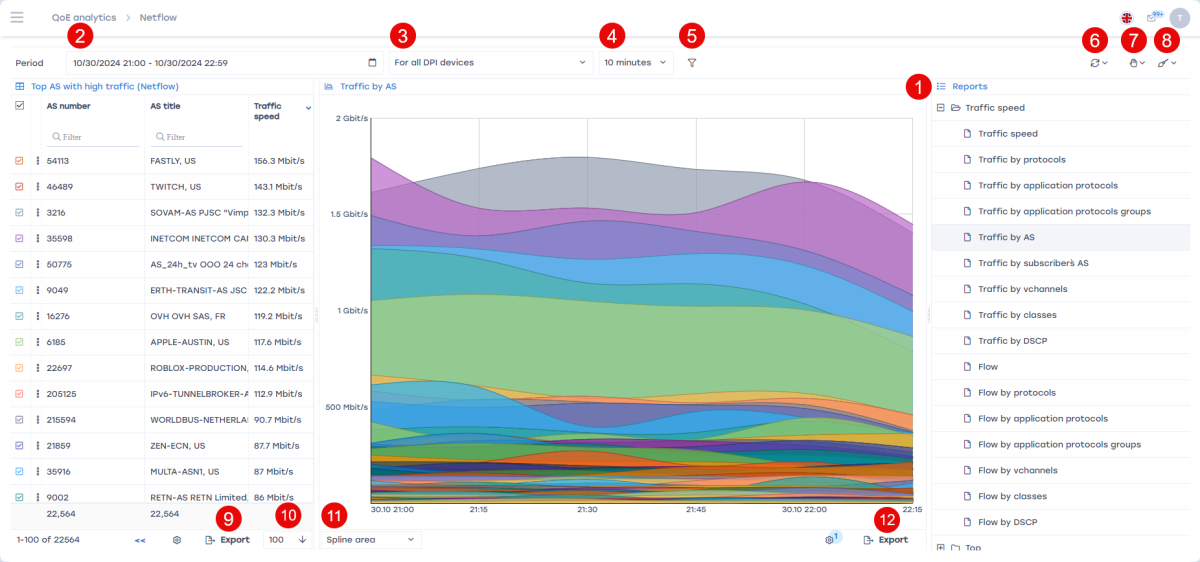
- Select the section and report (1). You can refer to the table in Description of QoE metrics from the VAS Experts documentation for assistance;
- Select the period for which the data will be displayed in the report (2);
- Set report filters (5). More about filters can be found in Filters in QoE reports in the VAS Experts documentation.
The data in the report can be displayed as a table or a chart. For reports that support charts, you can choose the chart type (11): spline area, area, stacked area, line, or stacked histogram.
The generated report can be exported as:
- A table — in Excel, TabSeparated, CSV, PDF, PNG (9). You can specify the number of rows per page (10), and this number will be reflected in the exported report;
- A chart — in PNG or PDF formats (12).
If necessary, you can specify additional settings for report generation:
- Select from which device the data will be displayed (3);
- Set the maximum report execution time (4) — this defines how long the report can take to load. If the report is not completed within this time, the loading will stop.
Was this information helpful?